Working across customer organisations
If you support more than one organisation, for example as a reseller or managed service provider, Customers appears in the sidebar. It shows every organisation you belong to on one page, so you can see which ones are still onboarding, which need attention, and jump into any of them.
Who sees it
Customers lists only organisations you are a current member of. If you are removed from an organisation, it disappears from the page on your next visit. If you belong to a single organisation, the page is not shown and the sidebar link is hidden. The ⌘K search labels the organisation group "Customers" for partner staff, and "Organisations" for everyone else.
While you work in a customer organisation as an external partner (you belong to more than one organisation and are not part of that organisation's own workforce), a strip at the top of every page reads "You're working in <organisation> as partner staff", and the customer's Team tab marks you as an External partner. If you are part of the organisation's workforce, neither appears. See Settings & Team.
Signing in
If you belong to more than one organisation, you land on Customers when you sign in, whichever role you hold, rather than on My work or on one organisation's Home. If you followed a link to a particular page, you go there instead.
What each row shows
Under each name the row says why it needs a look: the most pressing reason (with how many more there are) and the next step, in the same words as the getting-started checklist on Home. Anything only Quant can fix says to contact Quant support.
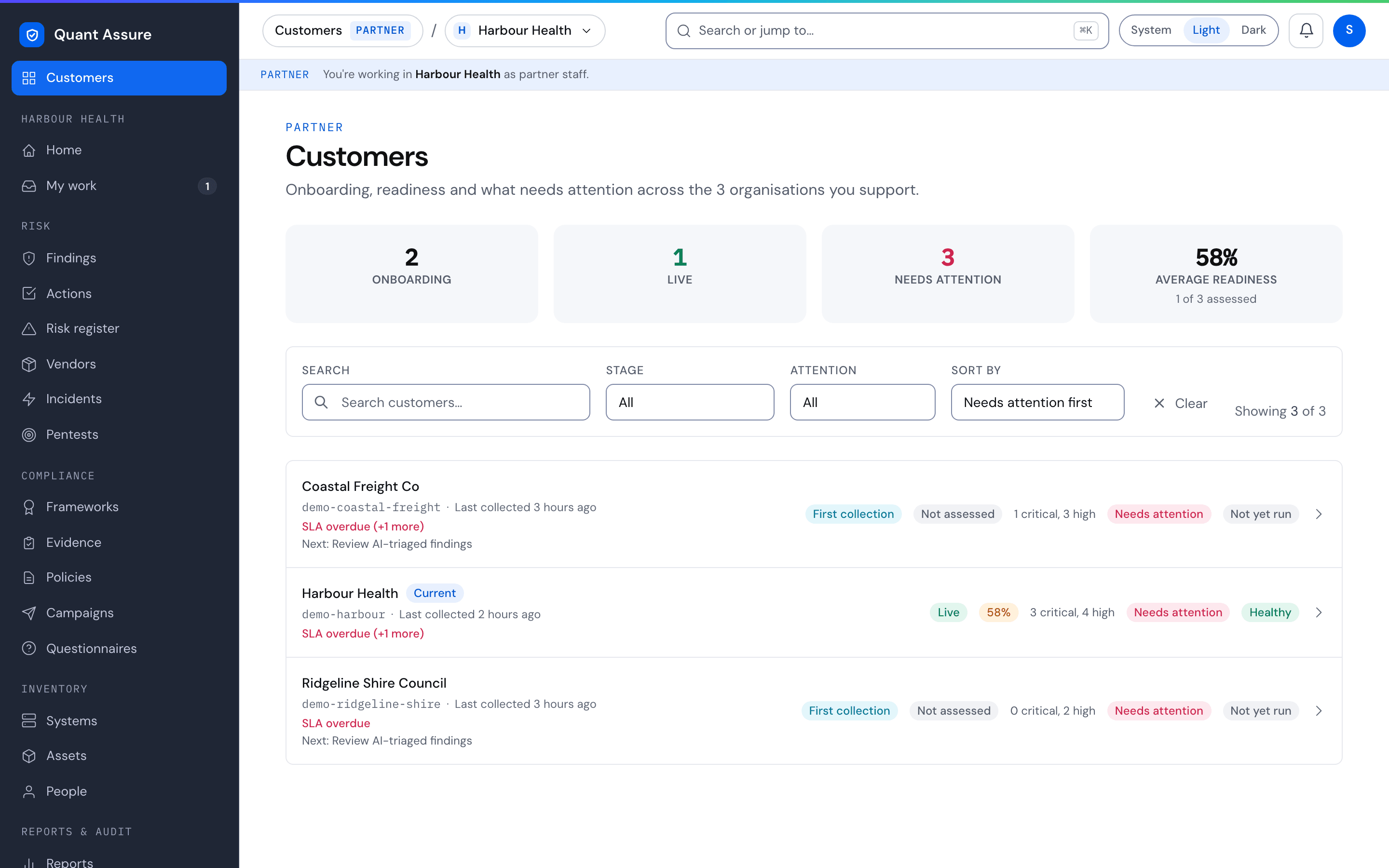
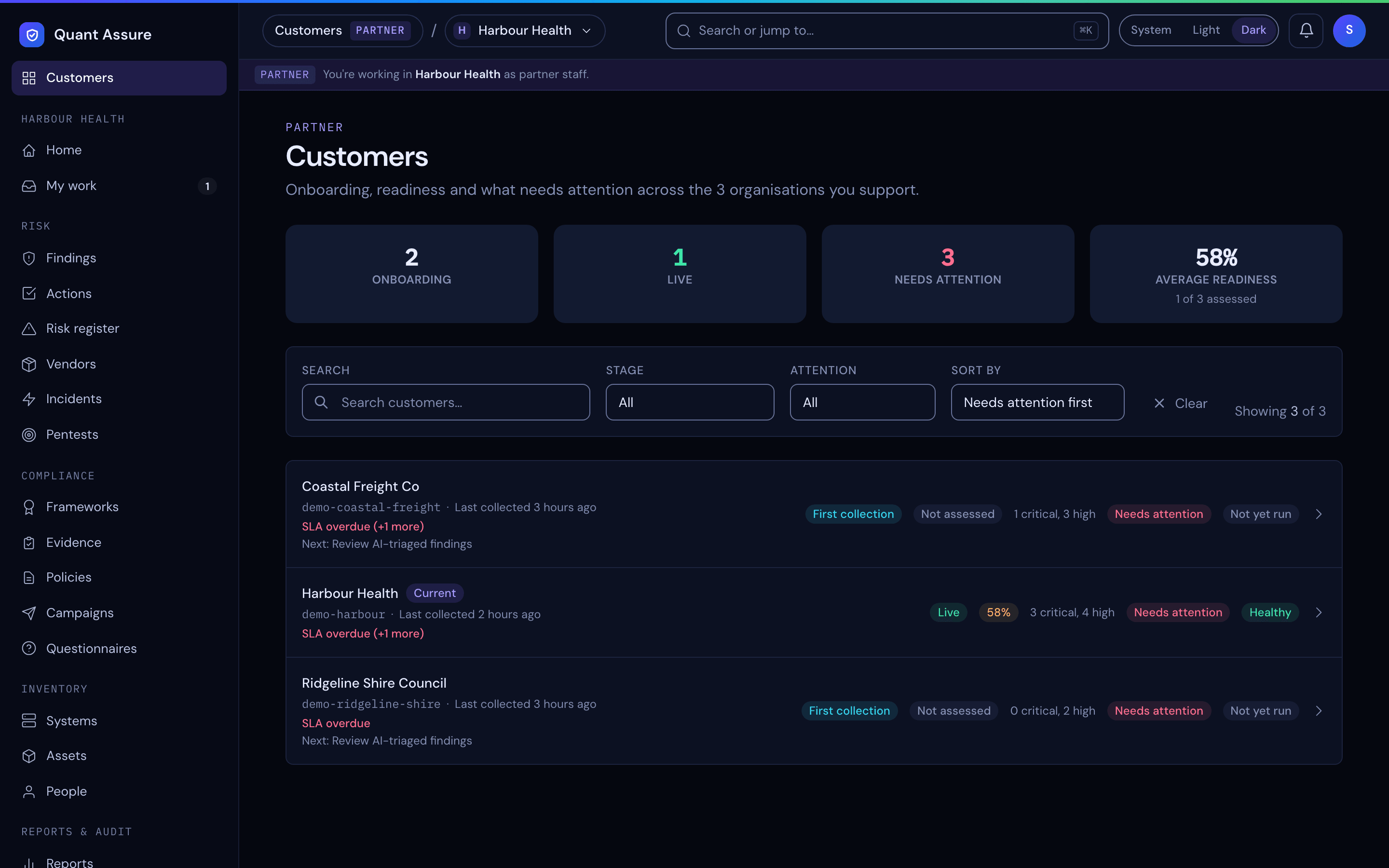
- Stage: Invited (no system yet), Systems connected, First collection, or Live. The stage is how far the organisation has got. If something went wrong at a step, the row also shows a Setup issue warning naming that step and what to do about it, which can be an earlier step than the stage, for example a provisioning problem on an organisation that has already collected.
- Readiness: the average across the organisation's target frameworks that have been assessed, with each framework in the row detail. "Not assessed" means nothing in the framework has been assessed yet; it is left out of the average, not counted as 0%. Home, the compliance posture report and Customers all use this average.
- Open findings: critical and high counts by AI-adjusted severity, the same as the organisation's own Home.
- Overdue SLAs and What changed this week: the number of entries in the organisation's Home card of the same name, so compliance drift, findings resolved, AI reclassifications and campaign progress all count.
- Collection health: a pill reading "Healthy", "Degraded", "Failing", "Not yet run" or "No sources". The row also shows "Last collected" with the time of the last successful collection, which counts any completed run. It says "Never" only when nothing has completed. Expand the row to see how many sources are failing or degraded. The same words are used on Home, the system page and connector health; see Connector Health.
The tiles at the top of the page show four totals across all your organisations: onboarding, live, needing attention and average readiness. They cover every organisation, not just the filtered page. Average readiness says how many organisations it covers ("3 of 5 assessed"); organisations with nothing assessed are left out.
Finding and sorting
Search by name, filter by Stage or by Attention ("Needs attention"), and sort by "Needs attention first" (the default), "Name (A–Z)", "Readiness (highest)" or "Readiness (lowest)". Filters are kept in the page address, so you can bookmark a view.
Opening a customer
Select a row to expand it, then choose the button that reads Open <organisation name>. This switches your session to that organisation and takes you to its Home. The organisation you are currently in is marked "Current" and its button reads "Go to Home". Use the organisation menu in the top bar or ⌘K to come back.
Switching organisation
The organisation menu in the top bar and ⌘K switch organisation too, but they keep you on the page you are on: from Findings you land on the other organisation's Findings. On a single record, such as one finding, system, action, risk or control, you land on that section's list, because the record belongs to the organisation you left. Filters are not carried over. The browser tab shows the organisation's name after the page name, so tabs for different customers are easy to tell apart.
If you open a link to a record from another organisation you belong to, the page says which organisation it belongs to and offers to switch there and open it. A link to a record in an organisation you are not a member of shows the same "not found" as a link that does not exist.
Two-factor authentication
If an organisation requires two-factor authentication and you have not set it up (and any grace period has ended), its figures are withheld and you cannot open it, just as its own pages would be. Set up two-factor authentication on Your account to see it.
Freshness
Each organisation's figures are reused for up to a minute, so a change may take that long to show. Open the organisation for live figures.