People
Inventory → People answers "who has access to what?". It lists every user account QuantAssure has found in your connected systems and joins the accounts that belong to the same person, using their email address. One person with a Google Workspace account and a GitHub account appears once, with both.
The page is headed "People": "Cross-system identity view. Shows all users discovered across connected systems, correlated by email."
Where the Data Comes From
People are not entered by hand. They are collected when a system runs, from integrations that can list users:
- Google Workspace: every user, with admin and super admin status, MFA status, last login, and whether the account is stale. See Google Workspace.
- GitHub: the members of your GitHub organisation, with whether each is an organisation admin and has two-factor authentication on. See GitHub.
Until a system with one of these sources has run, the page says "No identities yet" and asks you to run a pipeline sync. The list refreshes each time a system runs; there is no manual edit or import.
GitHub members who keep their email address private are listed under a GitHub "noreply" address. That address will not match the same person's Google Workspace account, so they appear as a separate person until they make a matching email public.
Reading the List
Each row shows one person:
- Name and email address, and how many systems they have an account in (for example, "2 systems").
- Assure User: shown when the email matches a member of your organisation, meaning this person also signs in to QuantAssure. Many people on the list will not have it, because they never log in here.
- A pill for each system they appear in, such as Google Workspace or GitHub.
- Their highest role across those systems: super admin, admin or user. Admin roles are highlighted, because they are the accounts that matter most to review.
- MFA ✓, MFA ✗ or MFA unknown. Google Workspace and GitHub report whether multi-factor authentication is on. If any of a person's accounts reports it off, the pill is MFA ✗; otherwise MFA ✓ if at least one reports it on. When no account reports it, the pill reads MFA unknown.
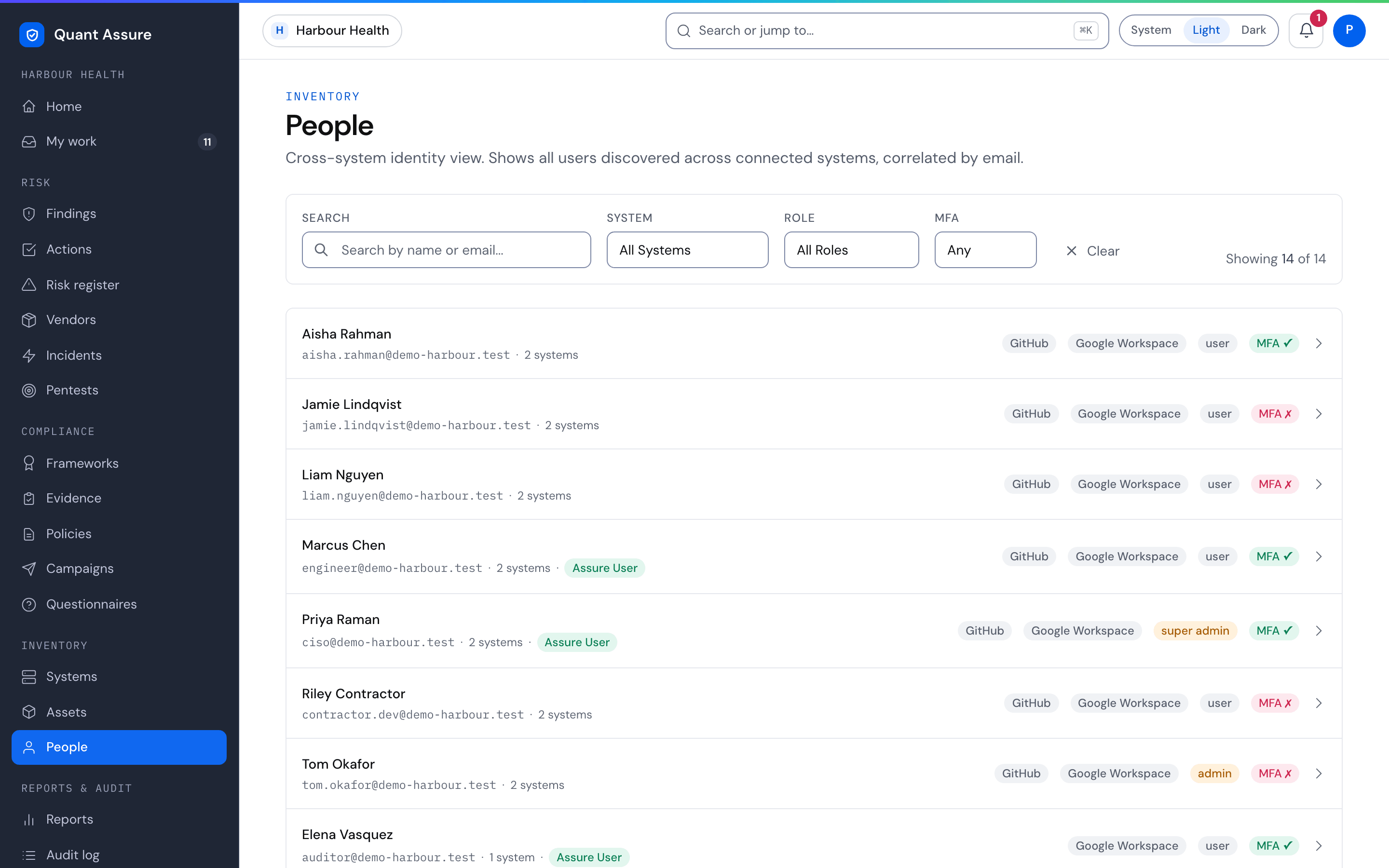
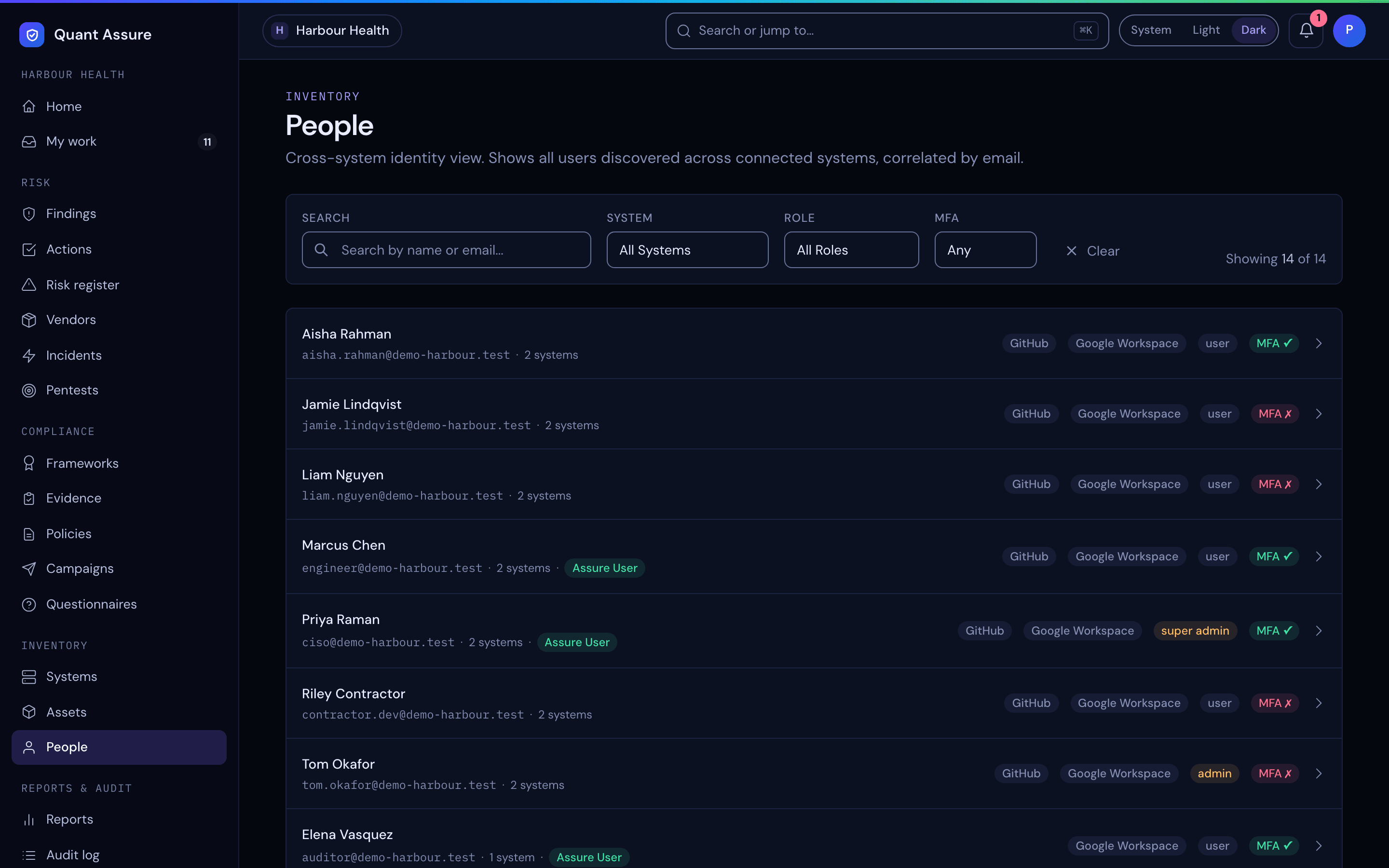
Select a row to open that person's page.
Person Page
The person page shows their name and email address, and, when the email matches a member of your organisation, their Assure role. Below that is one row for each system account:
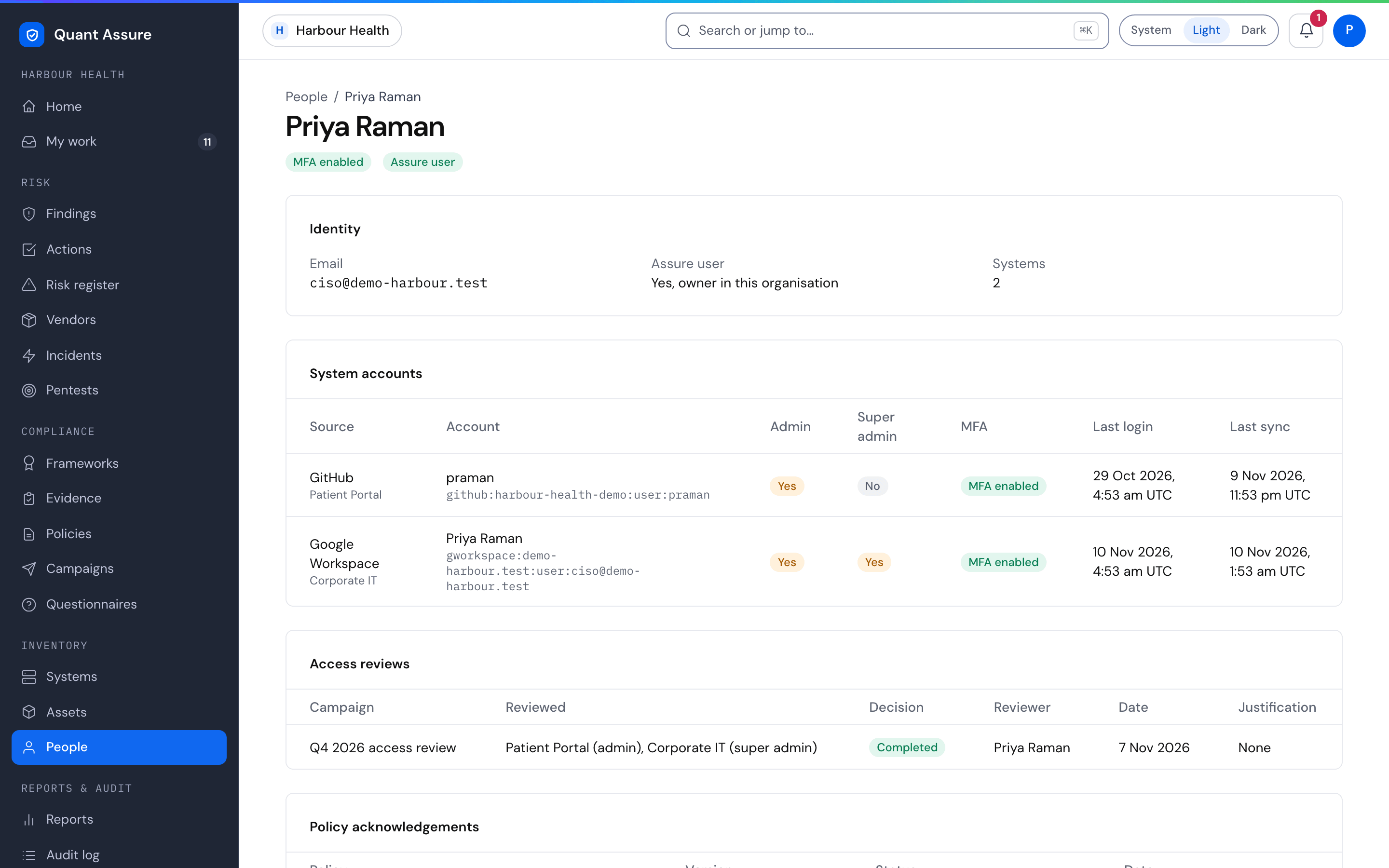
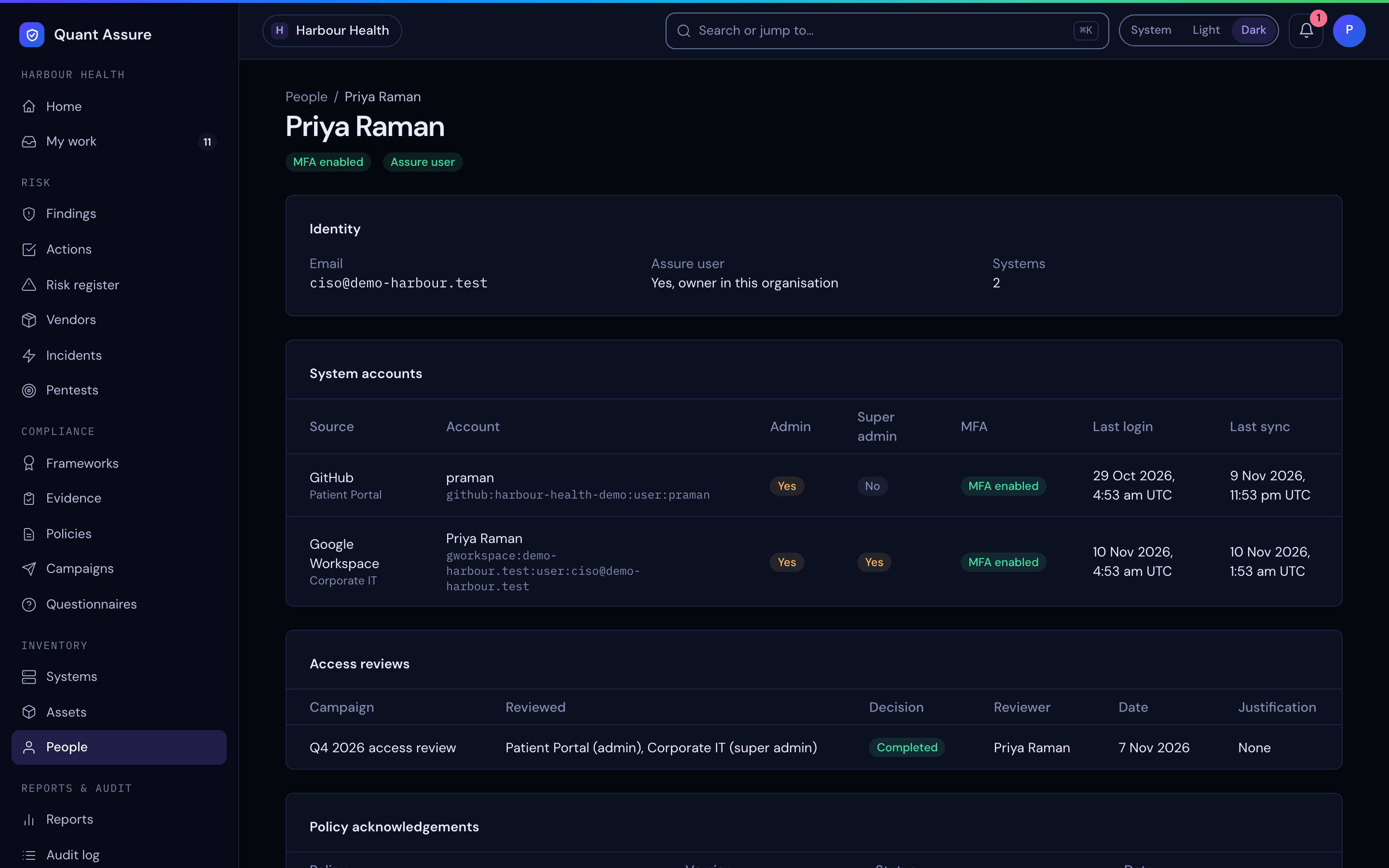
- Source and account: the connected system the account was collected from, and the account name.
- Admin and Super admin: whether that account holds the role. A flag the source did not report reads "Unknown".
- MFA: that account's multi-factor status, using the same rule as the list pill (enabled, disabled or unknown).
- Last login and Last sync: when the source last reported a login for the account ("Not reported" if it does not), and when QuantAssure last collected it.
Two sections follow the accounts. Each shows the latest 50 rows.
- Access reviews: every access review item for this person, matched on their email address (or their Assure user). Each row shows the campaign (a link), the systems and roles that were reviewed, the decision (Pending, Completed, Revoked or Flagged), the reviewer, the date of the decision and the justification. The justification is required when access is revoked or flagged.
- Policy acknowledgements: the policies and versions they have acknowledged, with the date, and any acknowledgement still outstanding from an open policy campaign, shown as Pending with its due date. Acknowledgements belong to Assure users, so for a person who is not a member of your organisation the section says there is nothing to show.
The page is read-only (decisions are made in the campaign) and scoped to your organisation: a person who is not in your organisation's collected accounts cannot be opened. The address of the page contains an encoded form of the email, not the email itself.
Filtering
- Search ("Search by name or email..."): matches part of a name or an email address.
- System: All Systems, plus each connected source that has produced user accounts for your organisation, such as Google Workspace or GitHub. Sources that only report devices, like Mosyle, are not listed.
- Role: All Roles, Super Admin, Admin or User.
- MFA: Any, Enabled, Disabled or Unknown. This uses the same rule as the pill, so a person with no MFA data is Unknown and never appears under Disabled.
A person matches a filter when any one of their accounts does, and the row still shows all of their accounts. For example, filtering Role to Admin lists everyone who is an admin in at least one system, including their other, non-admin accounts. With filters that match nobody the page says "No identities match your filters". Filters are kept in the page address, so you can bookmark or share a filtered view.
Who Can See It
Everyone in the organisation can open People, viewers included. It is read-only for all roles. People from your organisation's own members are the only QuantAssure users ever matched; accounts are never linked to users of another organisation.
How It Connects to the Rest of QuantAssure
- Findings: the same collected accounts feed Google Workspace compliance checks, which raise findings such as "User without MFA enabled", "Admin without MFA enabled", "Stale user account: ..." and "Stale admin account: ...". Use People to see the whole picture for a person, and Findings to work the issues.
- Access reviews: an access review takes its list of people, and the accounts shown against each, from this page when it starts.
- Compliance: MFA coverage and stale accounts support access-control controls; the findings above carry the control references.
No AI is involved in matching people: it is a straight match on email address (ignoring capitals and spaces).