Stay Informed
Your SLA clocks are running — now make sure you hear about them without having to watch the dashboard. In this step you'll enable the notification channels your team actually reads and turn on the email digest.
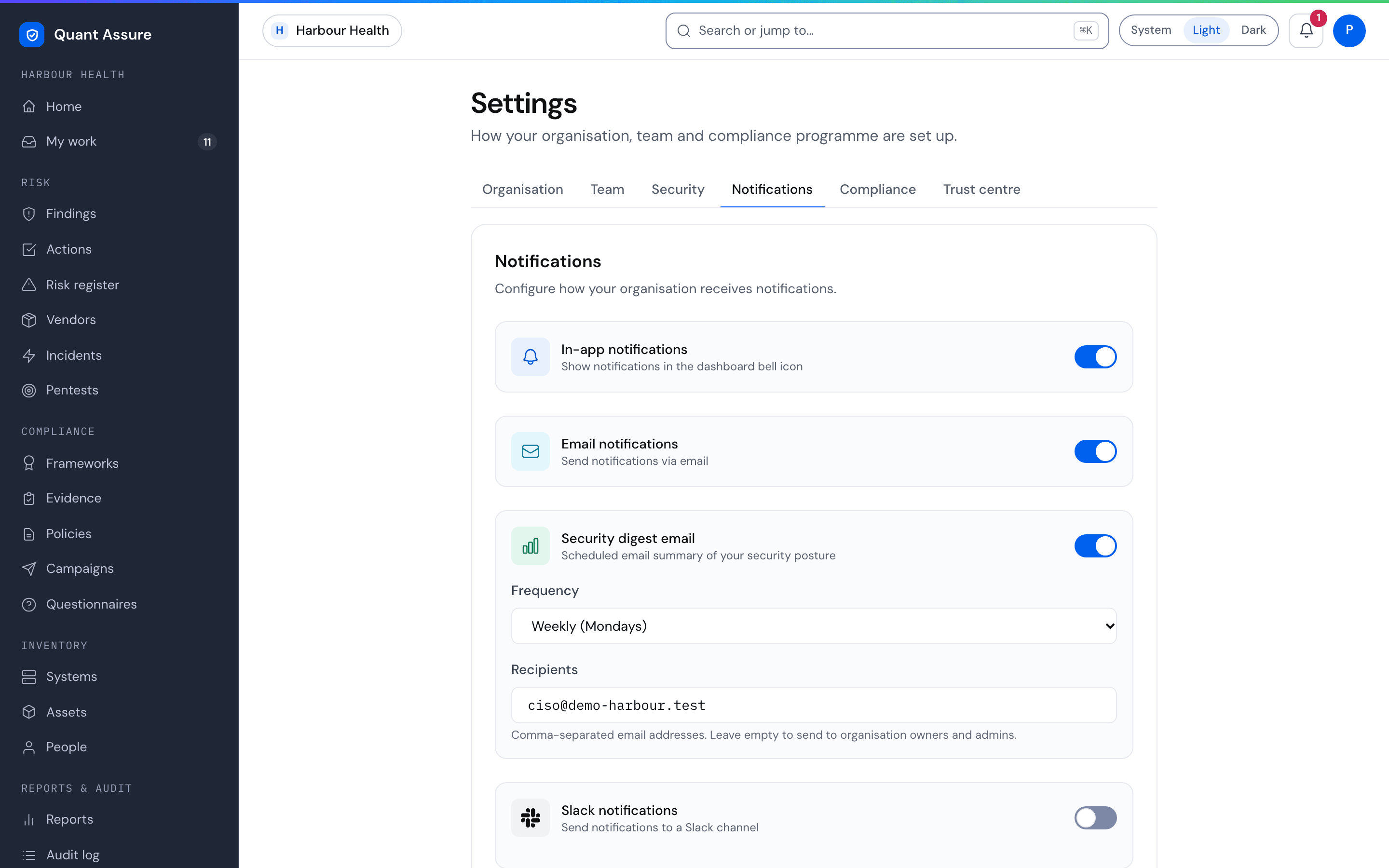
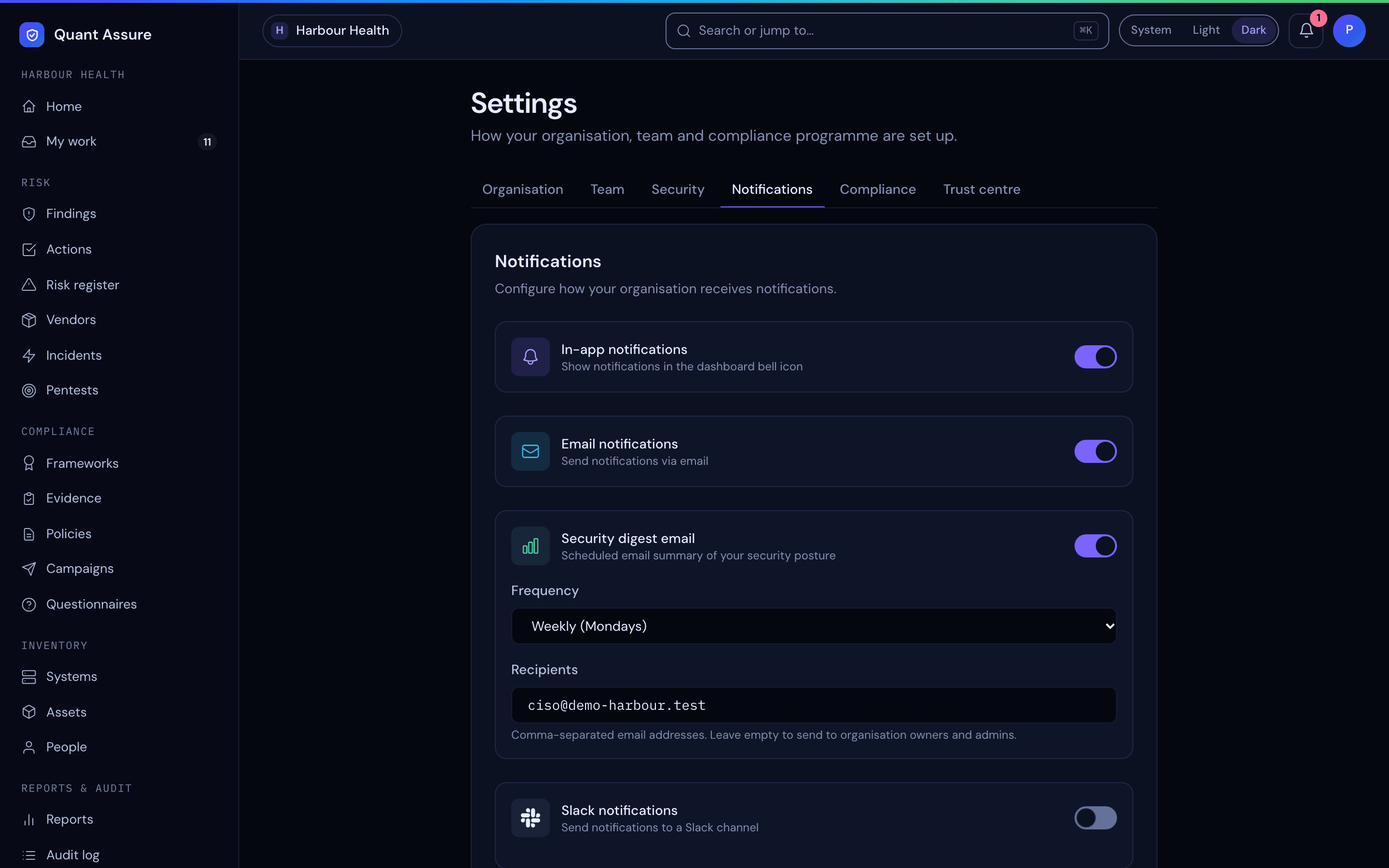
Settings → Notifications (in the sidebar, Settings, then the Notifications tab). Changes take effect when you press Save:
Channels
Enable the channels your team actually watches:
- In-app notifications — the notification bell. On by default; switch it off and no in-app notifications are created
- Email notifications — via your configured mail integration
- Slack notifications — incoming webhook URL, with a Send test notification button that sends at once without saving
The Slack webhook URL must be a Slack address:
https://hooks.slack.com/..., or
https://hooks.slack-gov.com/... for GovSlack. Other URLs
are refused when you save or test them, and a URL saved earlier that
isn't a Slack address is not sent to. Replace it, or clear it, under
Settings → Notifications.
Events that notify: policy publications and acknowledgement requests, campaign assignments and reminders, access review assignments and reminders, finding assignment (the new owner is told when someone makes them the owner of a finding), action assignment (likewise for an action), action creation, SLA at-risk warnings and overdue alerts, AI usage allowance alerts, run failures and compliance drift. SLA, AI usage, run failure and drift alerts go to owners and admins only — an accountability signal, not broadcast noise.
Run summary
When the Slack channel is on, QuantAssure posts a run summary to it after each completed run of a system: the system's open findings by severity (Critical, High, Medium, Low, using the AI-adjusted severity), and how many findings the run found new, resolved and left unchanged. Run summaries go to Slack only, not to email or the notification bell. A system configured before this with its own Slack webhook keeps posting there while the organisation has no Slack channel on.
Action notification priorities
Action creation messages are filtered by priority. Under Action notification priorities choose which of Critical, High, Medium and Low actions send a message; the default is Critical and High. The message goes to the organisation's channels (for example the Slack channel) rather than to an individual.
Assigning an action is separate: whoever you make the owner gets an Action assigned message of their own, whatever the action's priority, whether you assign it from the action's page, edit it, create it with an owner, or an AI client does. Nothing is sent when you assign an action to yourself, when you unassign it, or when the owner is unchanged. Assigned actions also show up in My work.
Run failure alerts
When a system's collection run fails, or a system is disabled because its configuration needs fixing, owners and admins get a message with the reason in plain terms and a link to the system. To avoid repeats, each system sends at most one alert every 24 hours. Turn them off with Run failure alerts under Settings → Notifications.
Compliance drift alerts
Readiness is recorded each time a control's status changes: after an AI assessment, a pipeline run, a manual or MCP edit, an SoA import, and once a day. Each new record is compared with the one before it for the same compliance target, and owners and admins get one message when:
- a control moves from compliant to partially or non-compliant,
- a control moves from partially compliant to non-compliant,
- readiness falls by at least the drop threshold (5 points unless you change it), or
- the gap count rises because controls that were not assessed are now gaps.
The message lists every control affected and what caused the change. Turn the alerts off, or change the threshold, with Compliance drift alerts and Readiness drop that counts as drift under Settings → Notifications. Drift is still recorded when the alerts are off. A first assessment sets the baseline and is not reported as drift.
The Email Digest
A scheduled summary of your security posture — health score, critical/high counts (AI-adjusted), SLA overdue and at-risk tallies, overdue actions, and policies due for review — delivered daily or weekly (Mondays, UTC). Enable it, pick the frequency, and optionally set an explicit recipient list; otherwise it goes to organisation owners and admins.
The health score is the same Security Posture score as the home dashboard (0–100, from your open findings by AI-adjusted severity), with an A–F grade derived from it: 90+ A, 80+ B, 70+ C, 60+ D, otherwise F. Overdue actions and policy reviews are listed beside the score but do not change it.
Every digest email has an Unsubscribe from this digest link (and the standard one-click unsubscribe in mail clients). It needs no login: the link opens a confirmation page, and nothing changes until the recipient presses Unsubscribe. Unsubscribing only stops the digest for that address in that organisation. Owners and admins can see who has opted out under the digest options in Settings → Notifications. Someone who unsubscribed is skipped even if they are on the recipient list, and can resubscribe from the same link.
SLA alerts fire once per state change — at-risk, then breach — so the digest is the place to watch trends without alert fatigue. See SLA Policies for how the deadlines are set.
Next step → Your first audit pack — turn everything you've set up into evidence: generate the AI Decision Audit Trail and SLA Compliance reports.