Set Your SLA Policy
You've seen your findings — now put deadlines on them. In this step you'll tune the remediation SLA per severity and learn what at risk and overdue mean, so the SLA figures across the dashboard reflect commitments you actually stand behind.
QuantAssure runs remediation clocks on every open finding, keyed to the finding's effective severity, not the scanner's rating. That is a person's override if there is one, otherwise the AI-adjusted severity, otherwise the scanner's severity until the finding is triaged. A finding reclassified from critical to low moves from the Critical deadline to the Low one automatically (1 day to 90 days on the platform defaults), with the change audit-logged. Findings at the lowest severity, informational, carry no SLA.
A clock starts when the finding is first seen. Time the finding spends under a valid risk acceptance does not count: when the acceptance ends or expires and the finding reopens, the clock carries on from where it stopped.
Configuring Your SLA Policy
Open Settings → Compliance and find the SLA policy section. Change the values and choose Save SLA policy:
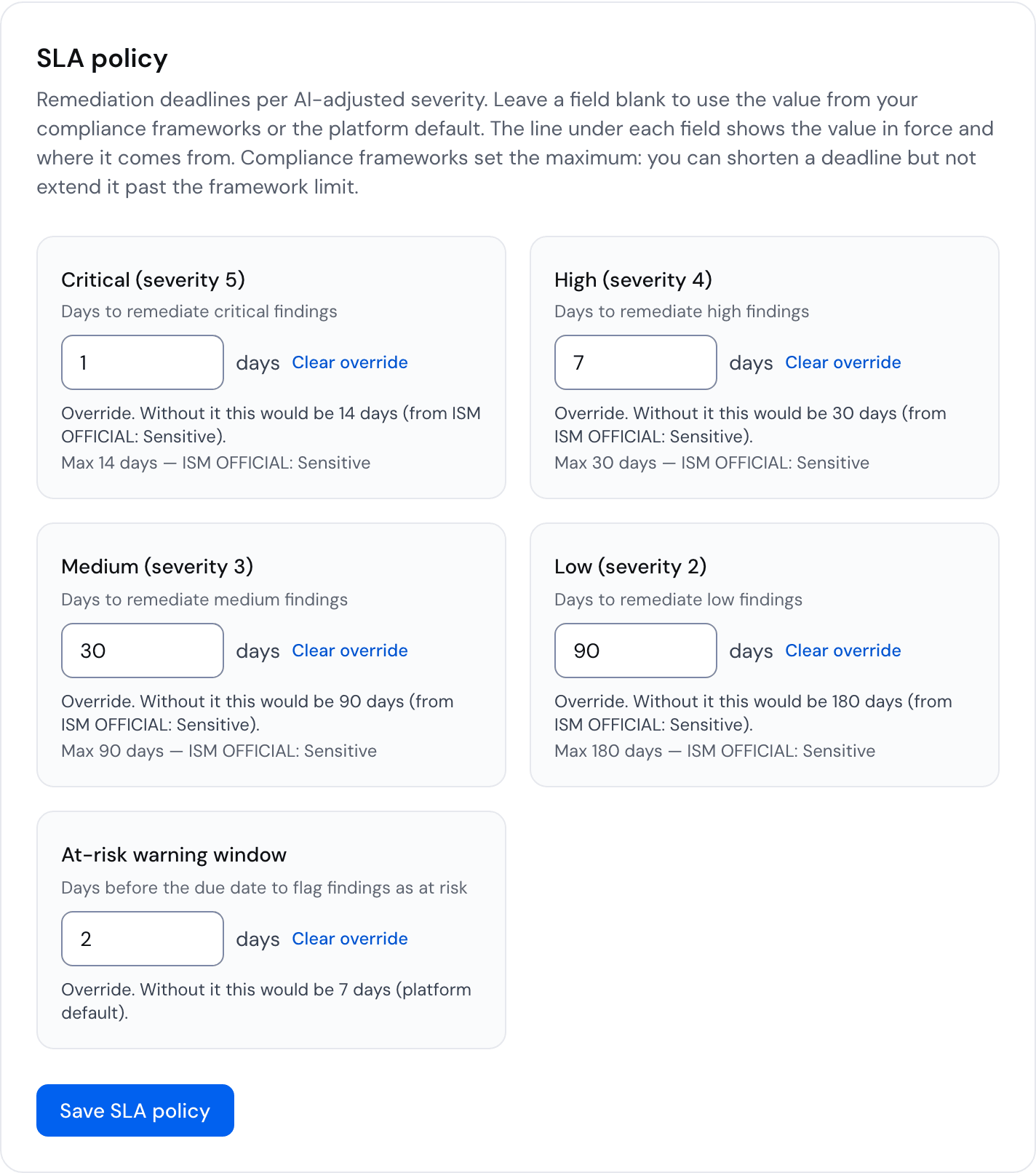
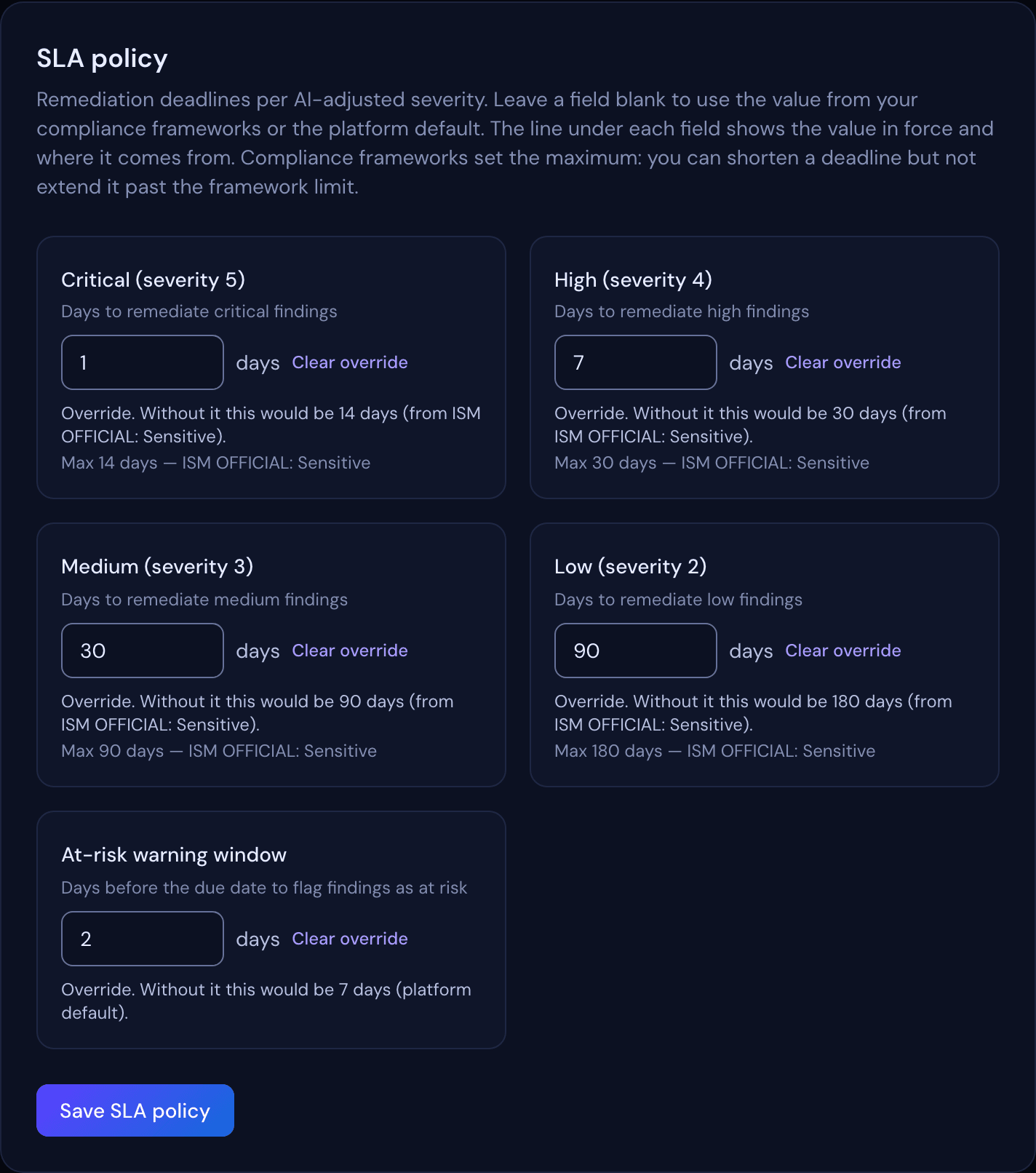
Set remediation days for Critical (severity 5), High (severity 4), Medium (severity 3) and Low (severity 2). Each field is a box you can type into, with its unit (days) beside it. Leave it empty to inherit — first from the strictest of your enabled compliance frameworks' SLAs, then from the platform defaults (critical 1 day, high 7, medium 30, low 90). The line under each field says which applies: Using 14 days (from ISM OFFICIAL: Sensitive). Enter a number to override. or Using 7 days (platform default). Enter a number to override. Once you enter a number, the line reads Override. Without it this would be 14 days (from ISM OFFICIAL: Sensitive). and Clear override empties the box again. The at-risk warning window (default 7 days) controls how early a finding is flagged before its deadline.
A framework's value replaces the platform default even when it is longer. For example, an ISM target sets critical findings to 14 days, not the platform's 1 day. Set your own value for a severity if you want a shorter deadline.
Compliance frameworks set the maximum. Your SLA policy can shorten a framework's deadline but not extend it. The field shows the limit and the framework that sets it, and saving a longer value is rejected. If you target several frameworks, the strictest one applies. A longer value saved before the framework was added is marked "Above the framework limit — not applied" and the framework deadline is used instead. Severities with no framework deadline, and the at-risk warning window, can be set freely.
Where SLA State Shows Up
- Finding page — the rule behind the deadline, for example SLA: 180 days (Low, from ISM OFFICIAL: Sensitive), due 8 May 2027, with an on track, at risk, overdue or paused badge. The days follow the finding's effective severity, including a severity someone has overridden. The clock is paused while a risk acceptance holds the finding
- Home — the Needs attention list shows each finding's SLA countdown, with a count of findings with an overdue SLA that links to the filtered list
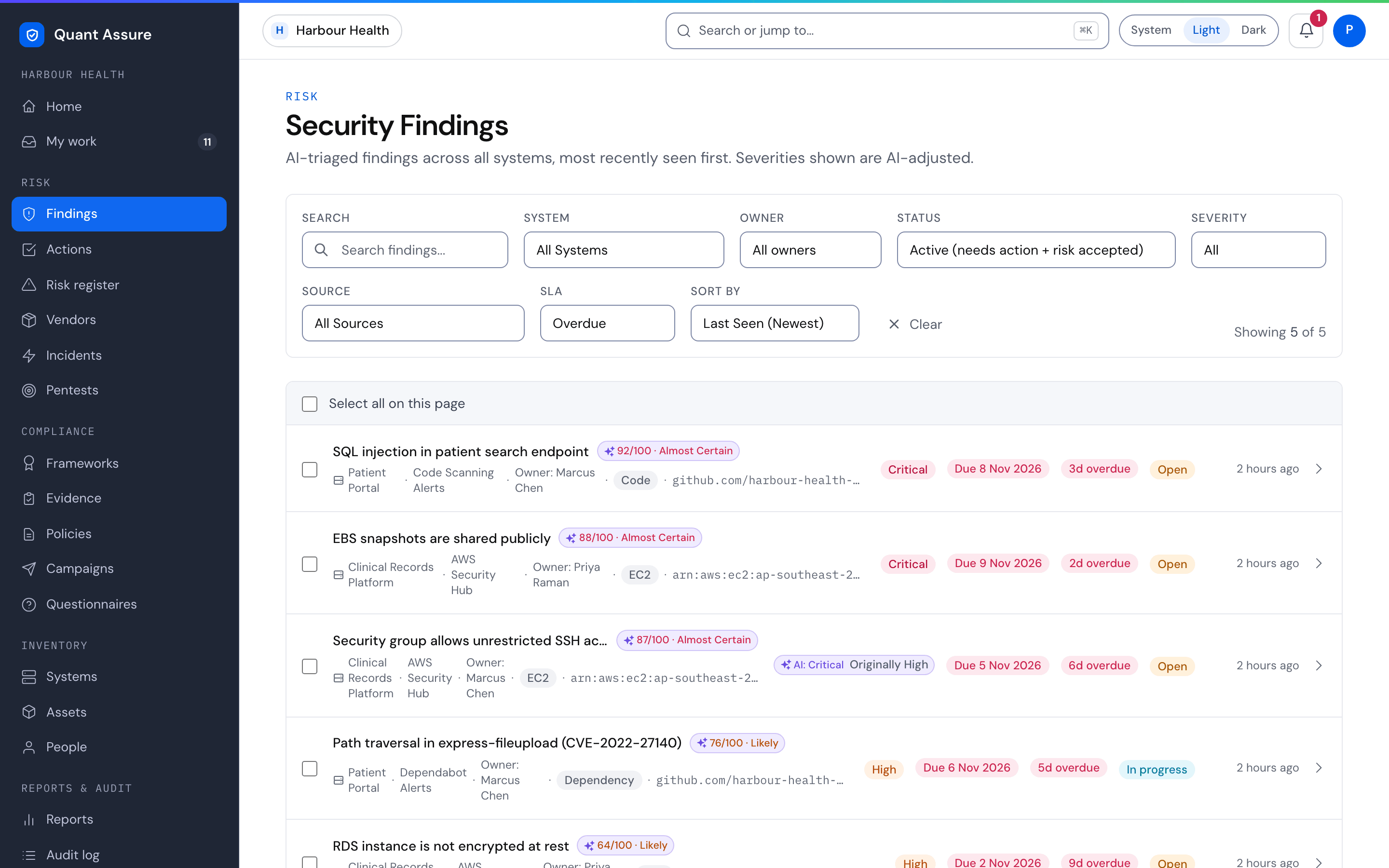
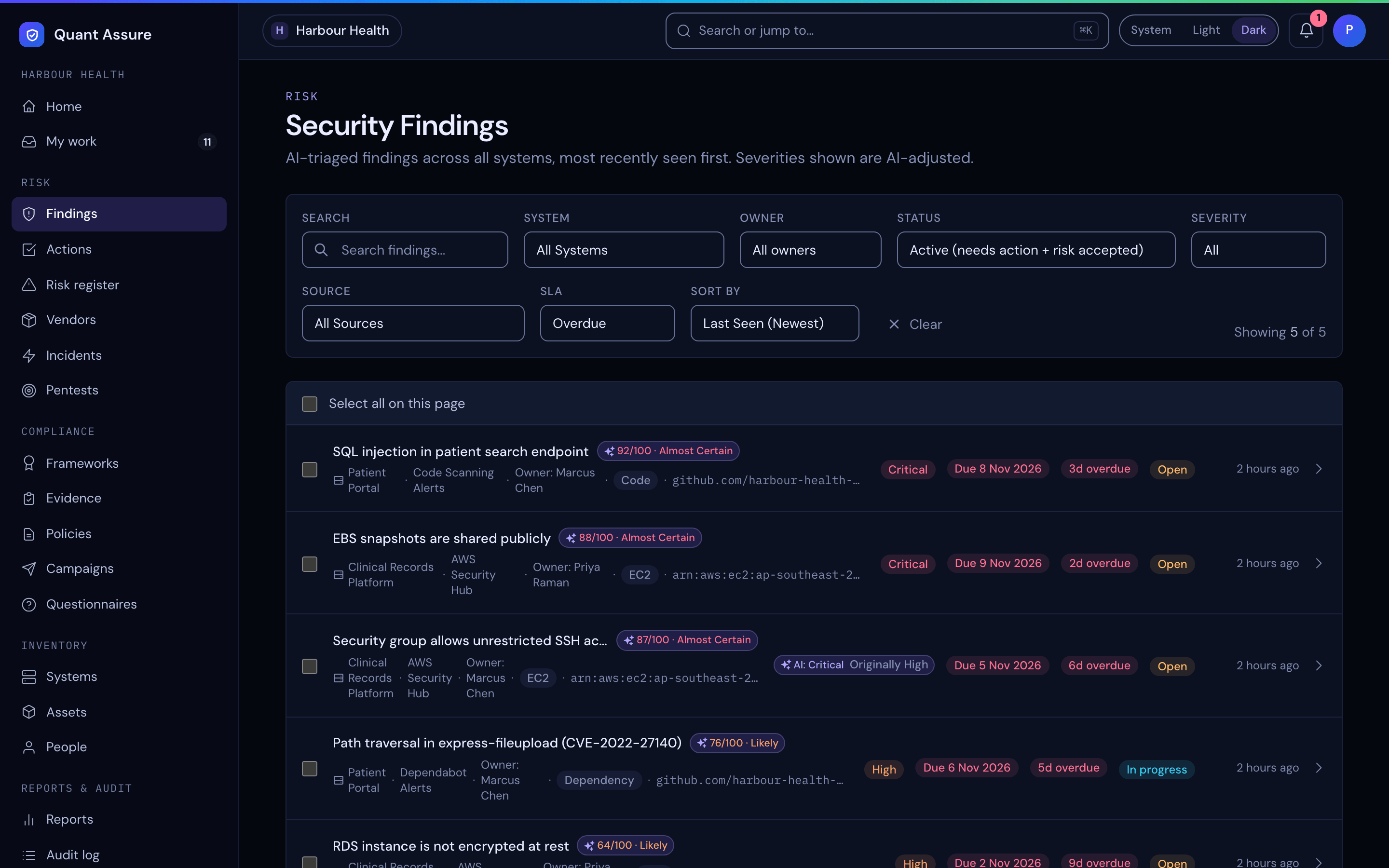
- Findings list — a Due 8 May 2027 pill on
every open finding that has an SLA (grey when on track, amber when
at risk, red when overdue), a red (
3d overdue) or amber (SLA 2d left) chip on findings that are overdue or at risk, an SLA filter (Overdue, At risk, On track) and an "SLA Due (Soonest)" sort - My work — the due date and SLA label on the findings and actions assigned to you
A finding past its deadline is Overdue everywhere: on the
finding page, the SLA filter, the due-date pill, the chip
(3d overdue), Home, Customers and reports. The API still
calls this state breached. A finding inside its warning
window is At risk everywhere.
- Notifications — when a finding enters the at-risk window, and again if it breaches, org owners and admins are notified through your configured channels (see Stay Informed). Each state fires once — no repeat noise from the scheduler.
- Evidence — the SLA Compliance report exports the open-findings SLA snapshot plus your resolution performance (met/missed, compliance rate by severity) with the policy yardstick printed for the assessor.
Why Effective Severity?
Running SLA clocks on raw severities forces a choice between missing real deadlines and drowning in false urgency: 400 "critical" scanner findings mean 400 one-day clocks. Keying the clocks to effective severity (the AI's assessment, or your own override of it) focuses your response time where the risk actually is — and the audit trail (original severity, adjusted severity, reasoning, SLA consequence) defends every deadline you didn't treat as critical.
Next step → Stay informed — pick the channels that alert you when a finding goes at-risk or breaches, and set up the email digest.